Introduction
Connecting your Beats headphones to a Dell laptop is a great way to enhance your audio experience. Whether you’re watching movies, attending virtual meetings, or simply enjoying your favorite music, the superb sound quality of Beats by Dre paired with your Dell laptop ensures an impeccable audio journey. This detailed guide provides clear instructions on connecting your Beats headphones to a Dell laptop, covering both wireless and wired methods to cater to your preference.
Understanding Beats Headphones Compatibility
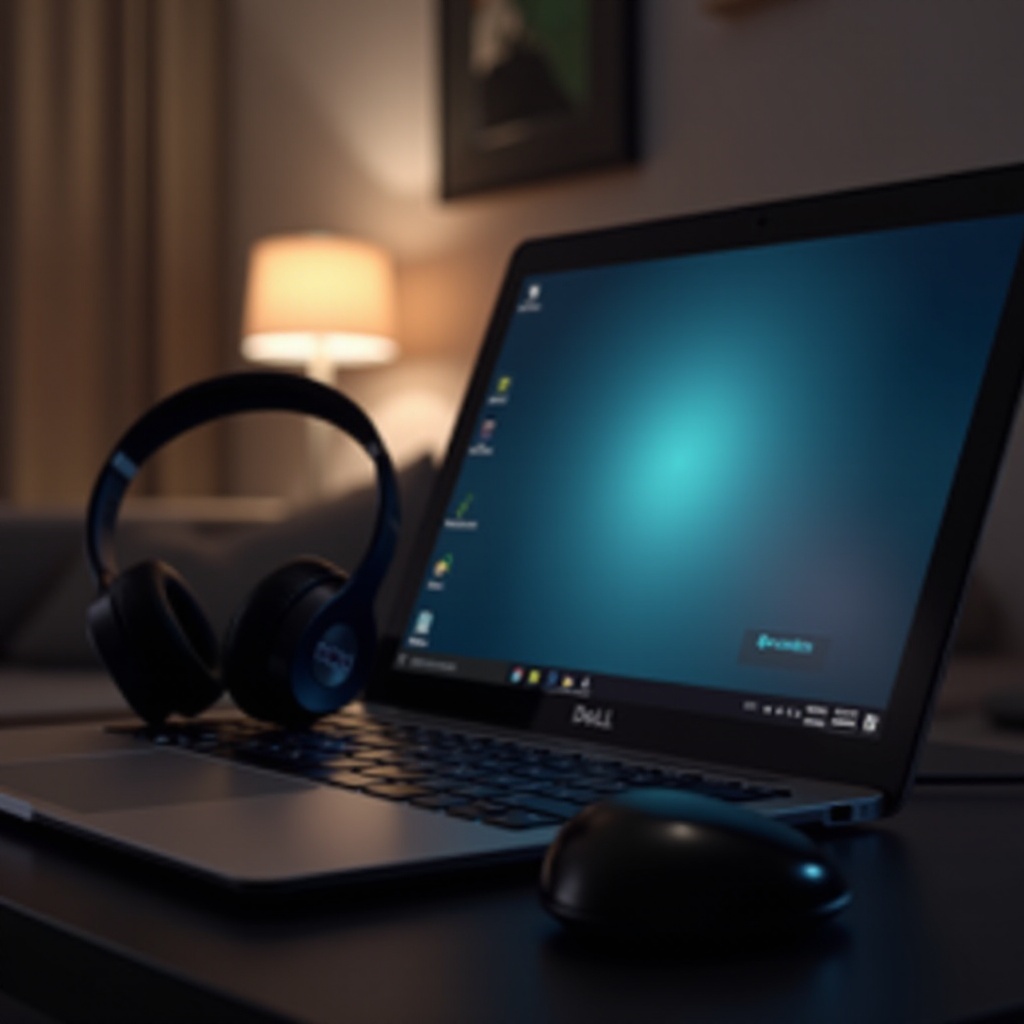
Before you start, it is important to ensure that your Beats headphones are compatible with your Dell laptop. The type of Beats model you have and the features of your laptop, such as Bluetooth capability, are key factors. Beats headphones come with various connectivity options, including:
- Wireless Models: Popular models like Beats Studio3 and Beats Solo Pro feature Bluetooth connectivity, which is compatible with Dell laptops equipped with Bluetooth.
- Wired Models: Models such as the Beats EP allow direct connection through an audio jack.
Understanding these compatibilities makes the connection process smooth. If you’re using wireless headphones, verify your Dell laptop’s Bluetooth compatibility to proceed.
Preparing Your Dell Laptop
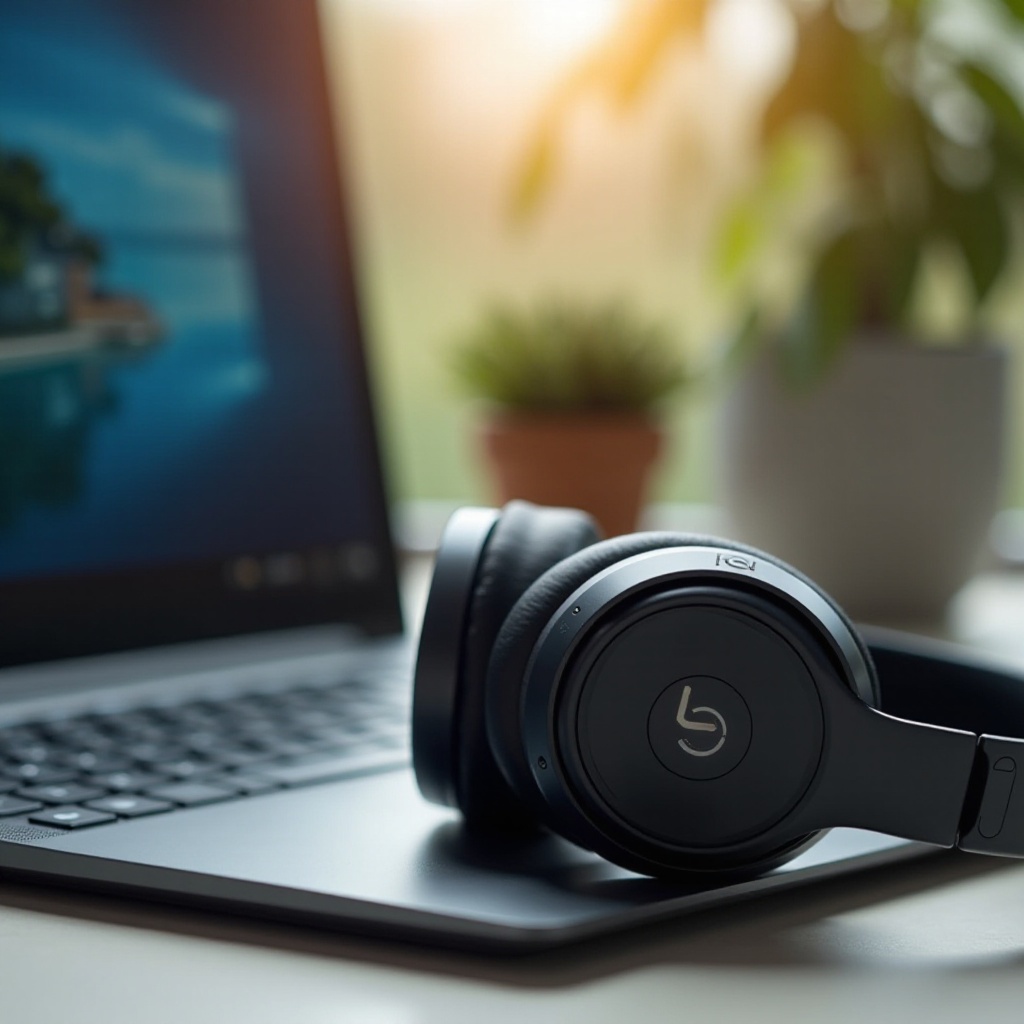
Getting your Dell laptop ready is the next crucial step. The proper setup ensures a hassle-free connection.
- Verify Bluetooth Capability: Confirm whether your Dell laptop supports Bluetooth. If it doesn’t, consider purchasing a Bluetooth adapter.
- Update Drivers: Go to the Device Manager on your laptop and check for driver updates to ensure optimal performance.
- Power Check: Ensure your laptop is charged sufficiently, especially if you are making updates or troubleshooting.
Once your laptop is prepared, you’re set to connect your Beats headphones.
Connecting Your Beats Headphones Wirelessly
If you own Bluetooth-capable headphones, connecting wirelessly is straightforward. Follow these steps:
- Enable Bluetooth on Your Laptop:
- Access ‘Settings’.
- Navigate to ‘Devices’ and select ‘Bluetooth & other devices’.
- Ensure Bluetooth is switched on.
- Activate Pairing Mode on Your Beats:
- Turn on your Beats headphones.
- Press and hold the power button until the LED flashes, indicating it is in pairing mode.
- Pair Devices:
- Click ‘Add Bluetooth or other device’ on your laptop.
- Select ‘Bluetooth’. Your laptop will search for nearby devices.
- Choose your Beats headphones from the list to establish the connection.
These steps should facilitate a smooth wireless connection. Keep your devices close to each other during the pairing to avoid any disruptions.
Connecting Your Beats Headphones Using a Wired Connection
For a stable and continuous connection, or if Bluetooth isn’t an option, a wired connection works perfectly. Here’s how:
- Connect with 3.5mm Jack:
- Insert the audio cable into your Beats headphones’ 3.5mm jack.
- Plug the other end into the laptop’s headphone port.
- Adjust Sound Settings:
- Open ‘Control Panel’, go to ‘Sound’, and ensure your headphones are set as the default playback device for optimal audio output.
This method ensures consistent audio performance without worrying about Bluetooth connectivity or battery limitations.
Troubleshooting Common Connectivity Issues
Should you face issues while connecting, here are ways to troubleshoot:
- Beats Aren’t Connecting:
- Double-check that Bluetooth is activated on both devices.
- Restart your laptop and attempt to pair again.
- Audio Problems:
- Confirm that your headphones are selected as the default audio device in sound settings.
- Driver Updates:
- If problems continue, revisit the Device Manager to check for any driver updates.
Both Dell and Beats offer customer support, which can be invaluable if issues persist. Taking these troubleshooting measures ensures consistent connectivity and performance.
Conclusion
In conclusion, linking your Beats headphones with a Dell laptop is a straightforward process when done wirelessly or through a wired connection. Making sure your devices are compatible and primed for connection significantly improves the overall experience. With a little bit of preparation and easy troubleshooting, you can enjoy high-quality sound, enhancing whatever you’re listening to.
Frequently Asked Questions
How do I know if my Dell laptop is Bluetooth-enabled?
You can check in the device settings by going to ‘Settings’, clicking ‘Devices’, and verifying there’s an option for ‘Bluetooth & other devices’.
Can I connect multiple Beats headphones at the same time?
Typically, laptops allow only one Bluetooth audio connection at a time to prevent interference.
What do I do if my Beats headphones keep disconnecting?
Make sure both devices remain close. Check Bluetooth settings and consider updating drivers if disconnections persist.