Introduction
The Amazon Echo Show is designed to elevate communication in your home with its unique ‘Drop In’ feature. This tool lets you connect instantly with other Echo devices without the need for a traditional call. Whether you want to check on family members, monitor different rooms, or use it for quick discussions, understanding how to effectively use Drop In can significantly enhance your experience with the Echo Show. This guide will take you through the complete setup, usage tips, and troubleshooting to ensure you get the most out of this feature.
What is the Echo Show and its Drop In Feature?
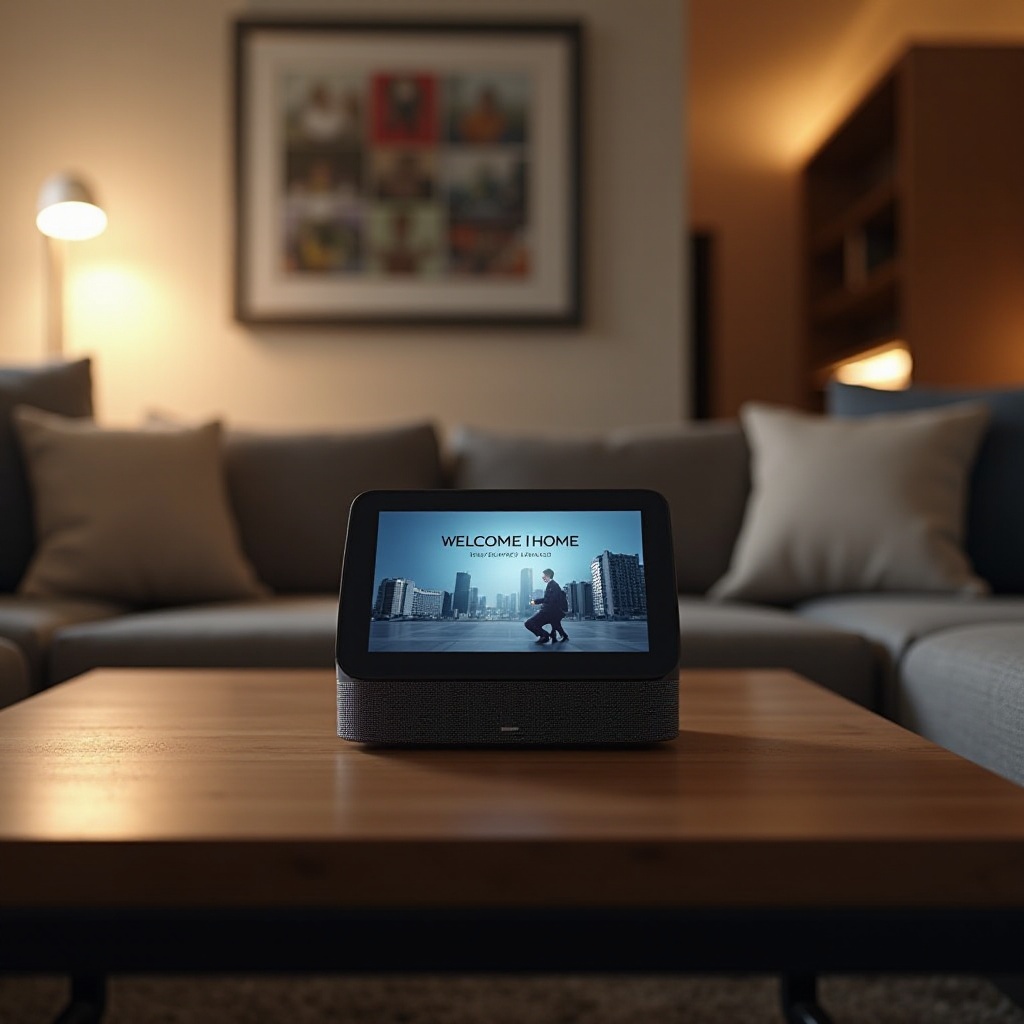
The Echo Show isn’t just a standard smart speaker; it combines Amazon’s Echo speaker capabilities with a visual display that enhances functionality. Among its many features, Drop In stands out. It allows you to make voice and video calls instantly between compatible Echo devices, eliminating the traditional call acceptance step. By integrating this, you can perform seamless check-ins with family or roommates. Understanding this feature is crucial before diving into the technical setup. Next, we will discuss how to set up Drop In on your Echo Show.
Step-by-Step Guide to Setting Up Drop In on Echo Show
Getting started with Drop In involves a few key steps to ensure your device is set up correctly.
-
Preparing Your Echo Show for Drop In: Begin by confirming that your Echo Show is connected to your home Wi-Fi network and linked to your Amazon account.
-
Enabling Drop In via the Alexa App:
- Open the Alexa app on your smartphone or tablet.
- Tap ‘Devices’ at the bottom of the screen.
- Select ‘Echo & Alexa’ and then choose your Echo Show device.
-
Under ‘Communication’, toggle the ‘Drop In’ option to enable it.
-
Configuring Permissions and Privacy Settings: It’s important to control who can access your device using Drop In.
- In the Alexa app, go to ‘Contacts’ and select whom you want to grant Drop In access.
- You can adjust the settings to allow Drop In from your household only or include specific external contacts.
With your device set up, you’re all set to start using Drop In. In the following section, we’ll explore how to effectively utilize this feature.
Using Drop In: Tips and Best Practices
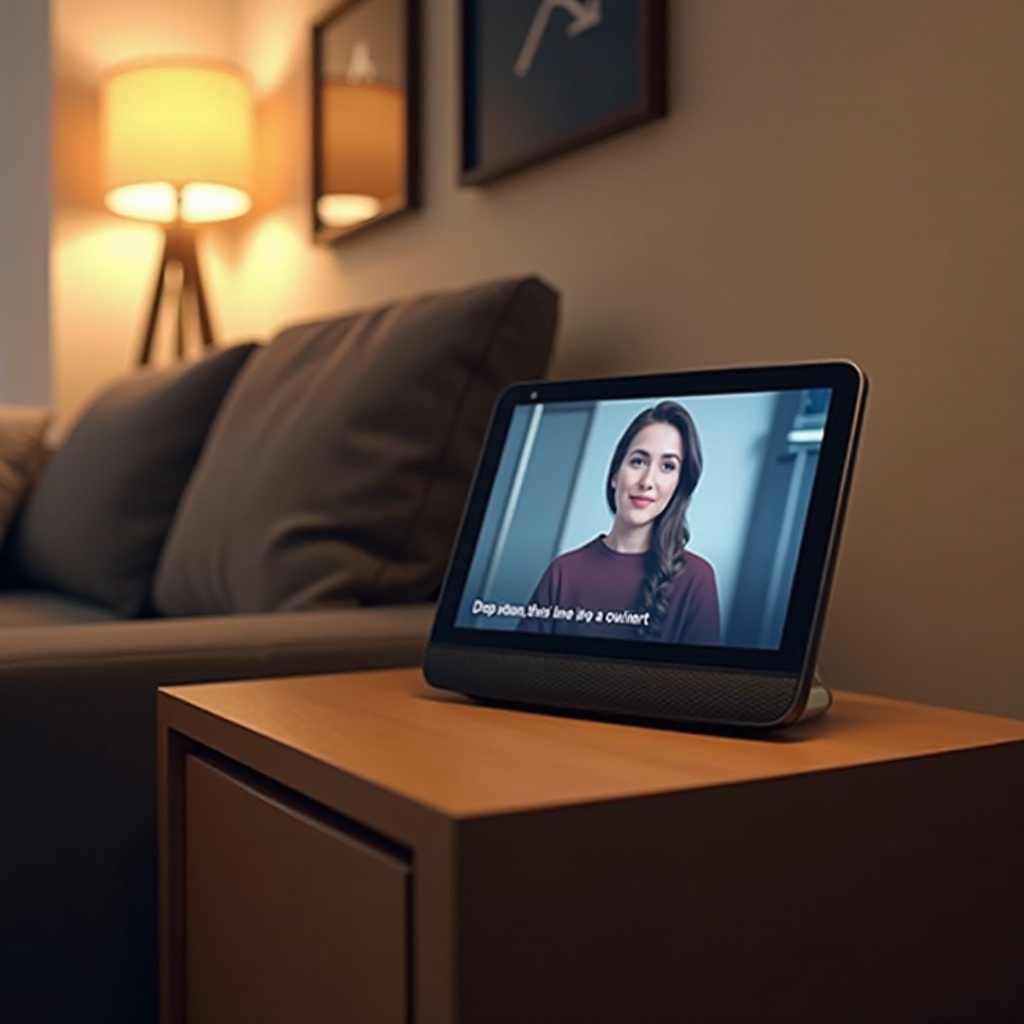
Now that your Echo Show is ready for Drop In, let’s discuss how to use this feature effectively.
- How to Initiate a Drop In on Your Devices:
- Use a simple command: say ‘Alexa, Drop In on [device name]’.
-
If you’re away from home, utilize the Alexa app to Drop In on your Echo Show remotely.
-
Managing Contacts and Device Availability:
- Keep your Alexa contacts up-to-date to ensure that the right individuals can reach you.
-
Enable or disable your device’s availability with the ‘Do Not Disturb’ setting when necessary.
-
Best Practices for Ensuring Privacy:
- Regularly check and adjust your privacy settings through the Alexa app to ensure they align with your comfort level.
- The Echo Show has a mute button to disable the microphone and camera for moments when you need guaranteed privacy.
By following these guidelines, you can make the most of Drop In, balancing convenience with privacy. However, sometimes you may encounter issues. Let’s go through some common troubleshooting solutions.
Troubleshooting Drop In Issues on Echo Show
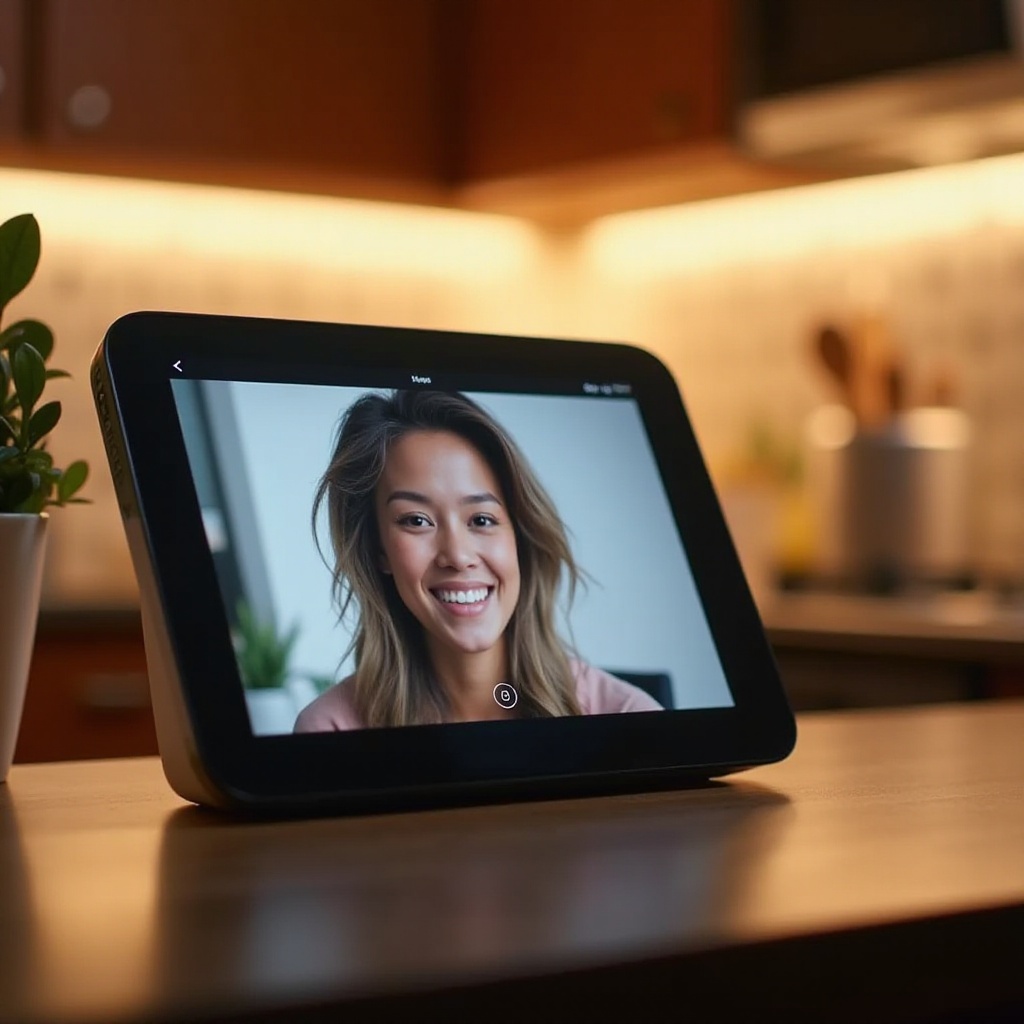
If you experience problems with Drop In, here’s how you can address them effectively:
-
Common Connectivity Problems: Verify that your Echo Show is connected to a reliable Wi-Fi network. Restarting your router might also resolve connectivity issues.
-
Solutions for Audio and Video Quality Issues: The performance of video and audio is heavily dependent on your internet speed. Make sure no other devices are consuming excess bandwidth.
-
Updating Your Device Software and Settings: Consistently checking for updates in the Alexa app or on the Amazon website ensures that your device is running the latest software, keeping it functionally optimal and secure.
These troubleshooting methods should help ensure seamless operation of your Echo Show. Let’s discuss additional features that can enhance its utility even further.
Enhancing Communication with Echo Show Features
Drop In is just one aspect of what makes the Echo Show valuable in a modern smart home.
-
Integrating Smart Home Devices with Echo Show: Link your Echo Show with compatible smart home devices like cameras and security systems, expanding its role beyond a communication device.
-
Creating Routines That Include Drop In: Alexa routines help automate daily communication tasks. For instance, you can schedule routines to Drop In on specific devices at set times each day, aiding in family check-ins or coordinating household activities.
These enhancements allow you to fully exploit the Echo Show’s capabilities. Let’s conclude with some final thoughts.
Conclusion
Exploring and mastering the Drop In feature on your Echo Show can transform how you interact within your smart home. By following the setup instructions and operational tips provided, you’ll be positioned to enjoy seamless communication while keeping a keen eye on personal privacy and device performance. Harness the potential of your Echo device by integrating additional features that promote sophisticated and streamlined home management.
Frequently Asked Questions
How do I stop someone from Dropping In on my Echo Show?
To stop someone from Dropping In, go to the Alexa app’s ‘Contacts’ section, select the person, and toggle off their Drop In permissions.
Can I Drop In on multiple devices at once?
Currently, Drop In only supports connecting to one device at a time, but you can switch between devices consecutively.
What should I do if Drop In is not connecting?
Ensure your Echo Show is online and updated. Try restarting your device and router to fix connectivity issues.