Introduction
Gaming enthusiasts are discovering the powerful combination of a PS5 controller paired with the portable iPad. This pairing enhances the gaming experience, offering more control and a console-like experience on a mobile platform. This guide will take you through the simple steps to connect your PS5 controller to your iPad, ensuring you can enjoy top-tier gaming anytime, anywhere.
Preparing Your Devices for Pairing
Before you start the pairing process, make sure your devices are ready. This preparation will help avoid potential connection issues.
-
Check Device Compatibility: Ensure your iPad is running iOS 14.5 or later. Verify that your specific iPad model supports external Bluetooth controllers like the PS5’s DualSense.
-
Update Your Software:
- On your iPad, navigate to ‘Settings > General > Software Update’ to install any updates.
- For your PS5 controller, connect it to your console with a USB cable and check for firmware updates.
With both devices properly updated and prepared, you are ready to move on to the pairing process.
Step-by-Step Guide to Pairing Your PS5 Controller
Once your devices are ready, follow these steps to pair your PS5 controller with your iPad:
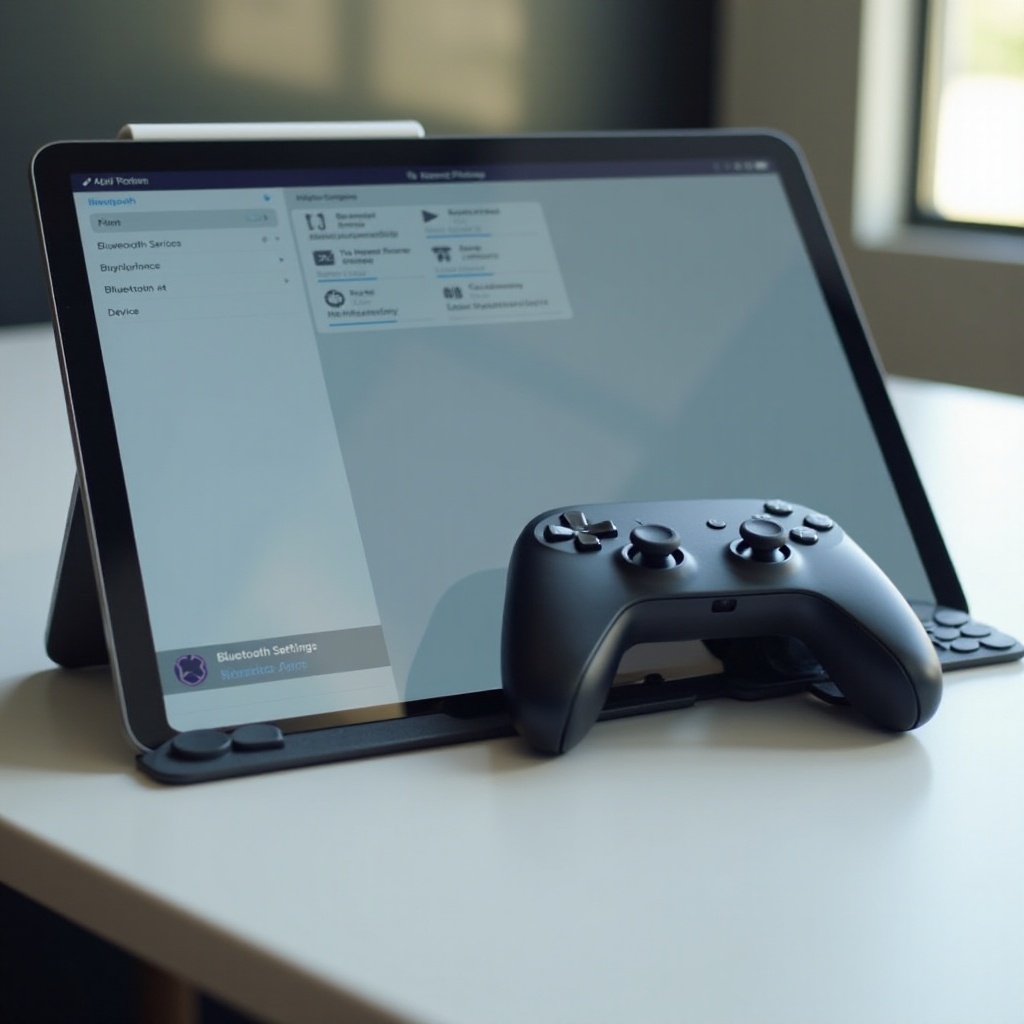
- Enable Bluetooth on Your iPad:
- Go to ‘Settings’ on your iPad.
-
Tap ‘Bluetooth’ and ensure it is turned on.
-
Put Your PS5 Controller into Pairing Mode:
- Press and hold the ‘PlayStation’ button and the ‘Create’ button (located above the directional pad) simultaneously.
-
The light bar on the controller will start blinking rapidly, indicating it’s in pairing mode.
-
Connect the Devices:
- Look for ‘DualSense Wireless Controller’ in your iPad’s Bluetooth device list.
- Tap to connect. When connected, the light bar will stop blinking and remain steady.
Congratulations, your PS5 controller is now connected to your iPad. You can now explore endless gaming possibilities on your device.
Troubleshooting Common Issues
Even with proper preparation, you might face some hiccups during pairing. Here’s how to troubleshoot:
-
Issue with Bluetooth Connection: If your controller doesn’t appear under available devices, try toggling Bluetooth off and back on. Restarting your iPad can sometimes resolve connection issues.
-
Unresponsive Controller: If the controller fails to respond, use a paperclip to reset it by pressing the small button in the hole on its backside, then attempt pairing again.
These solutions typically address common problems, helping to establish or restore your connection.
Optimizing Controller Settings for iPad Gaming
After pairing, optimizing your controller settings can significantly enhance your gaming experience:
-
Customizing Button Mapping: Some games allow button mapping, offering more personalized controls. Check your game settings for customization options.
-
Adjusting Sensitivity and Feedback: For supported games, adjust these settings within game options to fine-tune your gameplay.
-
Utilizing Third-Party Apps: Apps like Steam Link or Xbox Game Pass can provide additional settings for controller customization.
These optimizations can make a noticeable difference in gameplay, ensuring your control setup complements your gaming style.
Best Games to Play on iPad with a PS5 Controller
Now that everything is set up, it’s time to dive into some games optimized for controller play:
-
Genshin Impact: Enjoy expansive open-world exploration and combat precision with your PS5 controller.
-
Asphalt 9: Legends: Experience thrilling, responsive racing that’s significantly improved with a controller.
-
Call of Duty: Mobile: Engage in competitive shooting battles with enhanced accuracy and control.
These games showcase the potential of a PS5 controller paired with an iPad, delivering console-like experiences on a handheld device.
Benefits of Using a PS5 Controller Over Others
While various controllers are compatible with iPads, the PS5 controller offers unique benefits:
-
Superior Ergonomics: Designed for comfort, the DualSense controller reduces fatigue during long gaming sessions.
-
Stable Connection: Once paired, the controller maintains a stable, responsive Bluetooth connection.
-
Innovative Features: Features like haptic feedback, though not fully utilized on iPad, provide additional tactile enjoyment in supported scenarios.
Choosing a PS5 controller for your iPad gaming enhances your experience, offering comfort and reliability.
Conclusion
Pairing a PS5 controller with an iPad not only enhances your gaming experience but also offers mobile flexibility combined with console-grade control. With the provided steps, you’re ready to explore and enjoy a wide range of games with enhanced precision and convenience.
Frequently Asked Questions
Can I connect multiple controllers to my iPad?
Yes, you can connect multiple controllers, but support for multiple players depends on the game.
Do PS5 controller features like adaptive triggers work on iPad?
Currently, adaptive triggers are not fully supported on iPads, but basic functionalities work well.
How do I unpair my PS5 controller from my iPad?
To unpair, go to Bluetooth settings, tap the info icon next to ‘DualSense Wireless Controller,’ and select ‘Forget This Device.’