Introduction
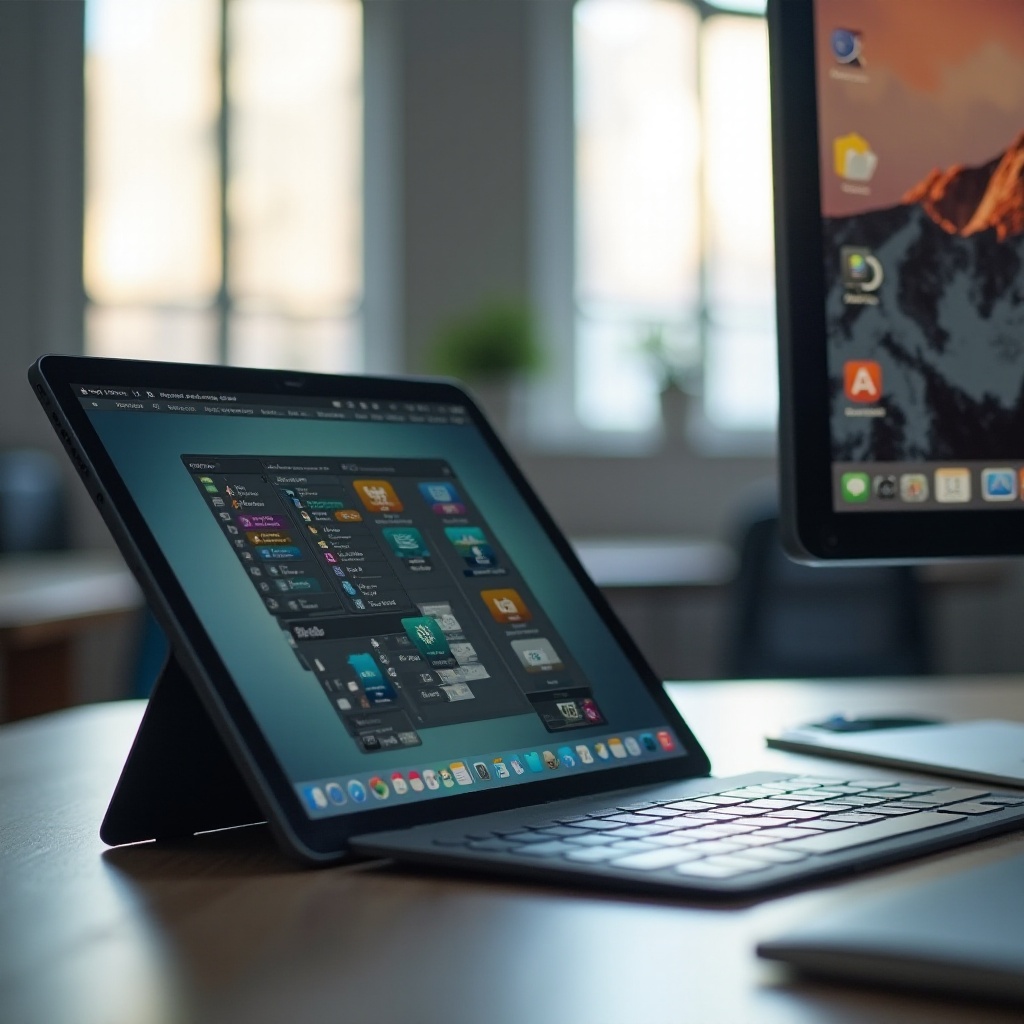
Using your tablet as a monitor can revolutionize your workspace, offering portability and increasing your productivity. Whether you work from home or are a creative professional or a gamer, a tablet as a monitor can enhance your experience. This guide walks you through everything you need to know, from selecting the right tablet to optimizing its use and troubleshooting potential issues.
The Benefits of Using a Tablet as a Monitor
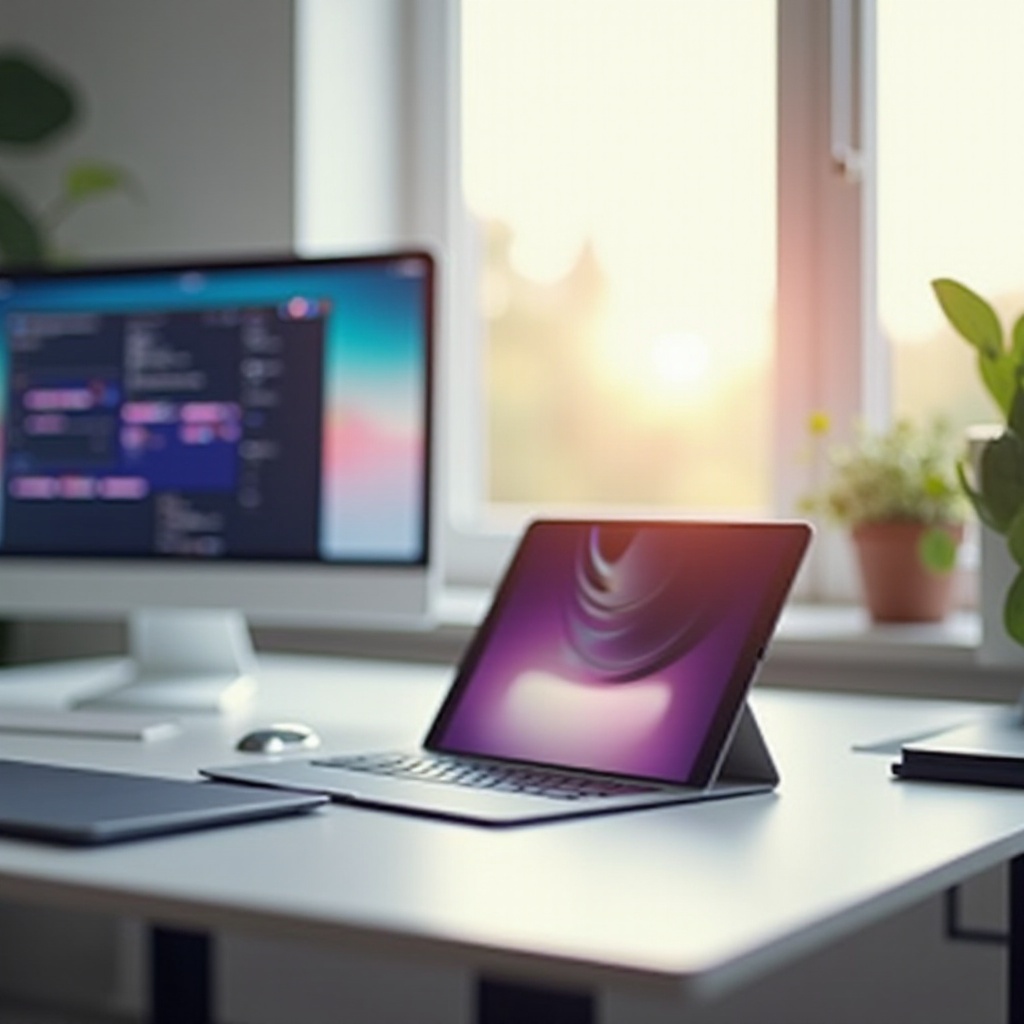
A tablet is not just a device for surfing the web or watching videos; it can be a valuable secondary monitor. One of the key benefits is increased workspace without the need for bulky equipment. This is particularly useful in today’s multi-tasking world where managing multiple applications is crucial. Moreover, it grants a new level of flexibility, as tablets are easily portable, making them ideal for professionals who need to be mobile.
Another major advantage is improved productivity. Dual-screen setups can help manage tasks efficiently, providing the space needed to compare documents, monitor communication channels while working, or conduct research alongside actual work. Additionally, this setup is versatile for various activities, including creative tasks that need more screen real estate. With these benefits in mind, selecting the right tablet for the job is the next logical step.
Choosing the Right Tablet for Monitor Use
Selecting the appropriate tablet is crucial for a smooth experience. Consider these factors when making your choice:
- Compatibility: Ensure your tablet is compatible with your PC or Mac. This may involve checking system compatibility with the software you plan to use.
- Size and Resolution: A larger screen with higher resolution will provide a better viewing experience.
- Connectivity: Consider tablets with USB-C ports or robust Wi-Fi capabilities, as this can affect the performance of your dual-screen setup.
With your choice of tablet in hand, let’s explore the software solutions that will enable its use as a monitor.
Software Solutions for Extending Your Display
A proper app can turn your tablet into an efficient secondary monitor. Here are some of the popular options:
-
Duet Display: Suitable for both Windows and macOS, offers a seamless extension of your desktop screen to your tablet. It’s a favorite for its reliability.
-
Splashtop Wired XDisplay: Particularly effective for wired connections, ensuring minimal lag and offering simplicity in setup.
-
Spacedesk: A solid free option for Windows users, providing essential features without cost.
-
Luna Display: Offers premium performance with minimal latency, especially suitable for creative professionals.
Now that you know which software to use, let’s proceed to setting up your tablet as a monitor.
Step-by-Step Guide to Setting Up Your Tablet as a Monitor
Setting up your tablet as a monitor can be straightforward if you follow these steps:
- Preparing Your Tablet:
- Download and install your selected app on the tablet.
-
Ensure both your tablet and computer are on the same network if you’re connecting wirelessly.
-
Configuring Display Settings on Your Computer:
- Install the necessary companion software on your computer.
- Follow the instructions provided by the app to establish the connection.
- Adjust your computer’s display settings to arrange the dual monitors effectively.
With the technical setup complete, it’s time to optimize your tablet monitor for your unique needs.
Optimizing Your Tablet Monitor for Productivity
Once your tablet is set up as a monitor, here are ways to optimize its use:
-
Arrange Applications Effectively: Use one monitor for main tasks and the other for additional applications, such as email or messaging.
-
Resolution and Orientation Adjustments: Set the resolution based on the tablet’s capabilities for clarity. Orient the tablet (landscape or portrait) according to your workflow.
These methods will help you maximize efficiency. However, should any technical issues arise, it’s vital to know how to troubleshoot them.
Troubleshooting Common Issues
While using a tablet as a monitor is quite efficient, you might encounter some issues. Here’s how to address them:
-
Connectivity Problems: Ensure that both the tablet and computer are connected to the same Wi-Fi network. If issues persist, restarting both devices might help.
-
Performance Issues: For wired solutions, ensure all ports and cables are secure. For wireless, maintaining a strong network connection is key.
Addressing these issues promptly will help you maintain a seamless experience. Now, let’s consider some creative uses for your new dual-monitor setup.
Creative Uses for a Tablet Monitor
A tablet monitor’s use extends beyond productivity; it can enhance your creative and entertainment experiences:
-
Graphic Design and Painting: Use your tablet’s touch screen capability for sketching or designing using specialized apps.
-
Virtual Meetings and Presentations: Allocate one screen for the video feed and another for notes or presentation slides.
-
Gaming and Streaming: Utilize the dual screens for streaming games or watching videos, with one screen dedicated to your play and the other to chats or various information.
Harnessing these creative uses ensures you take full advantage of your setup, rounding out this versatile approach.
Conclusion
Transforming your tablet into a functional monitor is more than just a technical upgrade—it’s a leap towards a more productive and creative digital environment. By choosing the right tablet, setting it up efficiently, and tackling common challenges, you can greatly extend your digital workspace. Whether you are working, designing, gaming, or simply managing multiple tasks, this setup provides a significant improvement to your everyday digital experience.
Frequently Asked Questions
Can any tablet be used as a monitor with my PC?
Most modern tablets can be used as monitors, provided they are compatible with the right software and your computer’s operating system.
Are there any performance drawbacks when using a tablet as a monitor?
While wireless connections might experience slight lag, choosing wired solutions or ensuring strong Wi-Fi can mitigate this issue.
What are the best apps for using a tablet as a monitor in 2024?
Duet Display and Luna Display are top choices for their reliability and performance, suitable for both professional and personal use.