Introduction
Optimizing the screen size on your Samsung TV can significantly upgrade your overall viewing experience. Whether you’re diving into a thrilling movie or simply enjoying a favorite TV show, the right screen size ensures every detail is captured vividly and accurately. Often, a mismatched screen size leads to missed scenes and distorted images, detracting from the enjoyment. This guide demystifies the process of adjusting your Samsung TV’s screen size, offering clear steps to enhance your viewing and engage with content more deeply.
Understanding Samsung TV Screen Settings
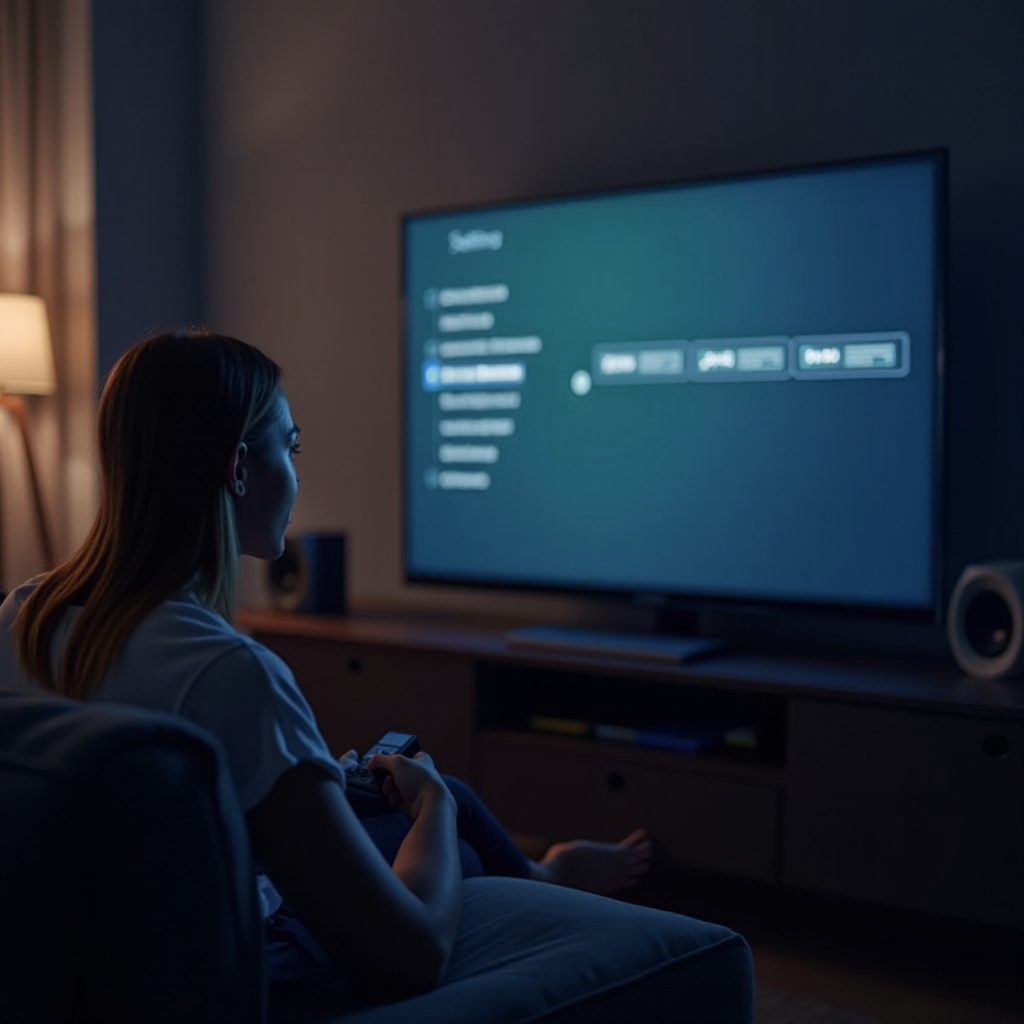
Samsung TVs come equipped with an array of screen adjustment tools that allow you to tailor your viewing experience. Each option is optimized for different types of content, ensuring superior quality regardless of what you’re enjoying. A fundamental step in navigating these settings is learning to use Samsung’s menu interface. The ‘Picture Size’ function plays a key role, but equally important is understanding aspect ratios and their impact on your viewing. From 16:9 for modern widescreen content to 4:3 for older media, knowing which ratio suits your material can help avoid those pesky black bars and image distortions. With this knowledge, you can more easily adjust your screen, enhancing visuals further.
Step-by-Step Guide to Adjusting Screen Size
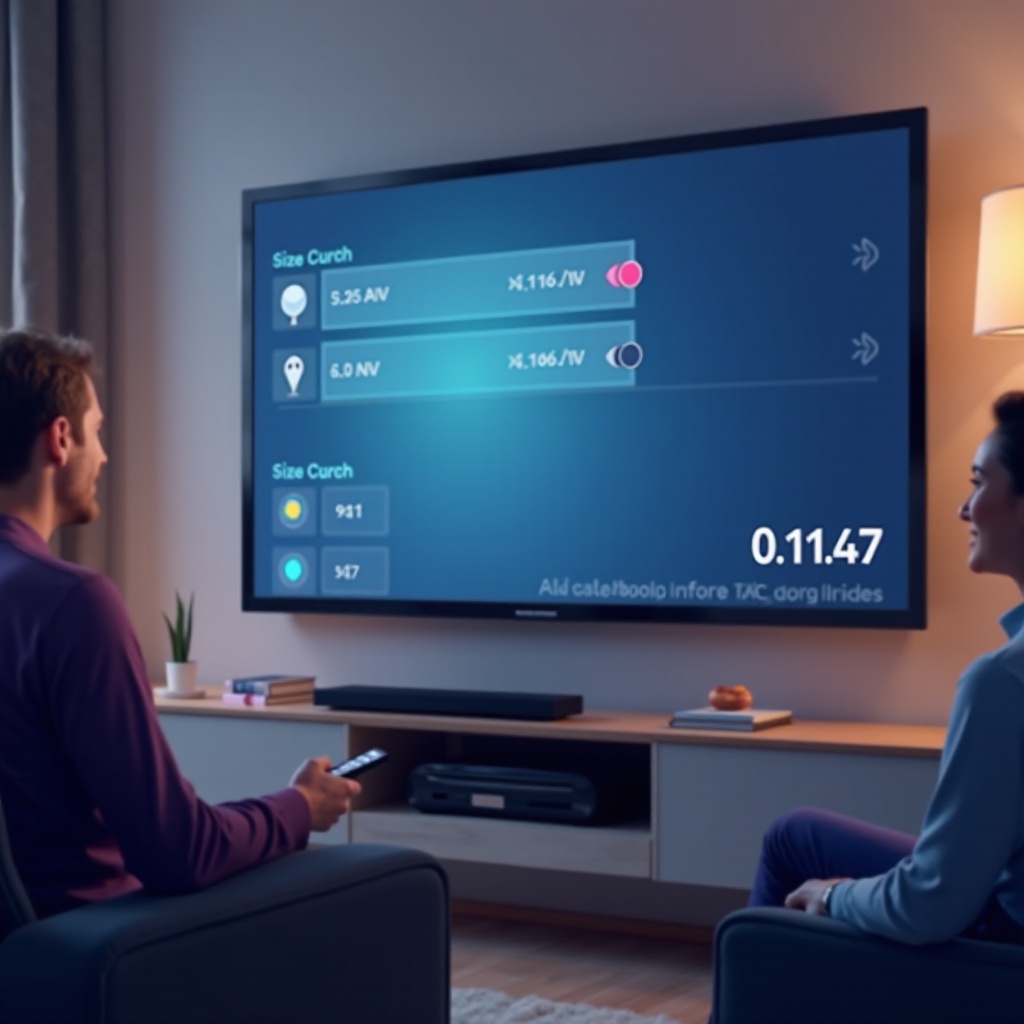
Navigating the Samsung TV Menu
- Switch on your Samsung TV and grab the remote.
- Press the ‘Home’ button to open the main menu.
- Navigate to ‘Settings’ with the arrow buttons.
- Once there, select ‘Picture’ to open the picture settings menu.
Choosing the Appropriate Picture Size Option
Inside the picture settings menu:
- Select ‘Picture Size Settings’.
- Click on ‘Picture Size’ or a similarly titled option.
- Choose from options like ‘16:9’, ‘4:3’, and ‘Fit to Screen’. Select the size that complements your current content:
- ’16:9′ for contemporary high-definition shows.
- ‘4:3’ for classic or older-style content.
- ‘Fit to Screen’ for automatic adjustment to the input.
Exploring Different Aspect Ratios
- Return to the ‘Picture’ menu and select ‘Picture Mode’.
- Experiment with aspect ratios:
- ‘16:9’ is best for high-definition or cinematic viewing.
- ‘4:3’ is ideal for older shows and traditional formats.
- Adjust until the image fits perfectly without quality loss.
By adjusting aspect ratios, you can seamlessly enhance the screen’s compatibility with your preferred content.
Utilizing Screen Modes for Optimal Viewing
Transitioning smoothly, let’s discuss how screen modes can further refine your viewing.
Standard Mode
This is the default mode, balancing color and brightness with energy efficiency. It serves well for general viewing needs.
Wide Fit Mode
Wide Fit Mode expands content to fill the screen—ideal for movies or widescreen broadcasts. Use it judiciously, as stretching content can sometimes lead to image distortion, especially with lower-quality inputs.
Custom Mode Settings
- Navigate to ‘Picture Mode’ in settings.
- Choose ‘Custom Mode’ for manual adjustments to brightness, contrast, and sharpness.
- Alter these settings to suit your room’s lighting or the specific content you are watching.
By discovering these modes, you can switch settings to match different content types, optimizing your entire viewing experience seamlessly.
Troubleshooting Common Screen Size Issues
Resolving Black Bar Problems
If you consistently see black bars:
- Ensure your aspect ratio is set to ‘16:9’ for standard broadcasts.
- Utilize ‘Fit to Screen’ for automatic adjustments across diverse content.
Fixing Distorted Images
Distortions often mean the aspect ratio doesn’t match your signal input:
- Revise the aspect ratio using earlier guidelines.
- Align your input settings from sources like cables or streaming to ensure overall compatibility.
Implement these solutions to keep technical issues at bay, paving the way for an uninterrupted viewing experience.
Advanced Tips for Samsung TV Users
Using Game Mode
Activate Game Mode within settings to minimize input lag for gamers, enhancing gaming responsiveness without compromising on picture quality.
Keeping Firmware Updated
Regularly check for updates on your Samsung TV’s firmware. These updates often include improvements to screen settings, system stability, and better compatibility with new content formats.
Arming yourself with these advanced tactics helps maintain optimal TV performance, ensuring long-term use as technology evolves.
Conclusion
Adjusting your Samsung TV’s screen size is not only about technical adjustments — it’s about transforming everyday watching into a captivating visual journey. With guidance on picture size tuning, aspect ratio exploration, and leveraging different screen modes, each viewing becomes a cinematic experience. Armed with these strategies, you’ll enhance your Samsung TV’s capabilities and enjoy perfectly sized screens no matter the content.
Frequently Asked Questions
How do I reset my Samsung TV screen settings?
Navigate to ‘Settings’ > ‘Picture’ > ‘Expert Settings,’ then select ‘Reset Picture’.
Can I adjust screen size for all input sources?
Yes, adjust the screen size for each input source individually using the ‘Picture Size’ options provided.
Why does my screen size change when streaming?
Different streaming services may default to different aspect ratios or resolutions. Adjust within the Samsung settings or the streaming service settings to stabilize your preferred size.