Introduction
For laptop users craving high-performance graphics, an external graphics card adapter offers a tangible solution. With software demands increasing, particularly in gaming and creative work, many laptops are unable to internally support advanced graphics cards due to their compact design and limited power capacity. This innovative technology allows you to harness enhanced graphics capabilities without investing in a new machine. In this guide, we delve into the workings of external graphics card adapters, their benefits, and their essential role in boosting your laptop’s performance.
Understanding External Graphics Card Adapters
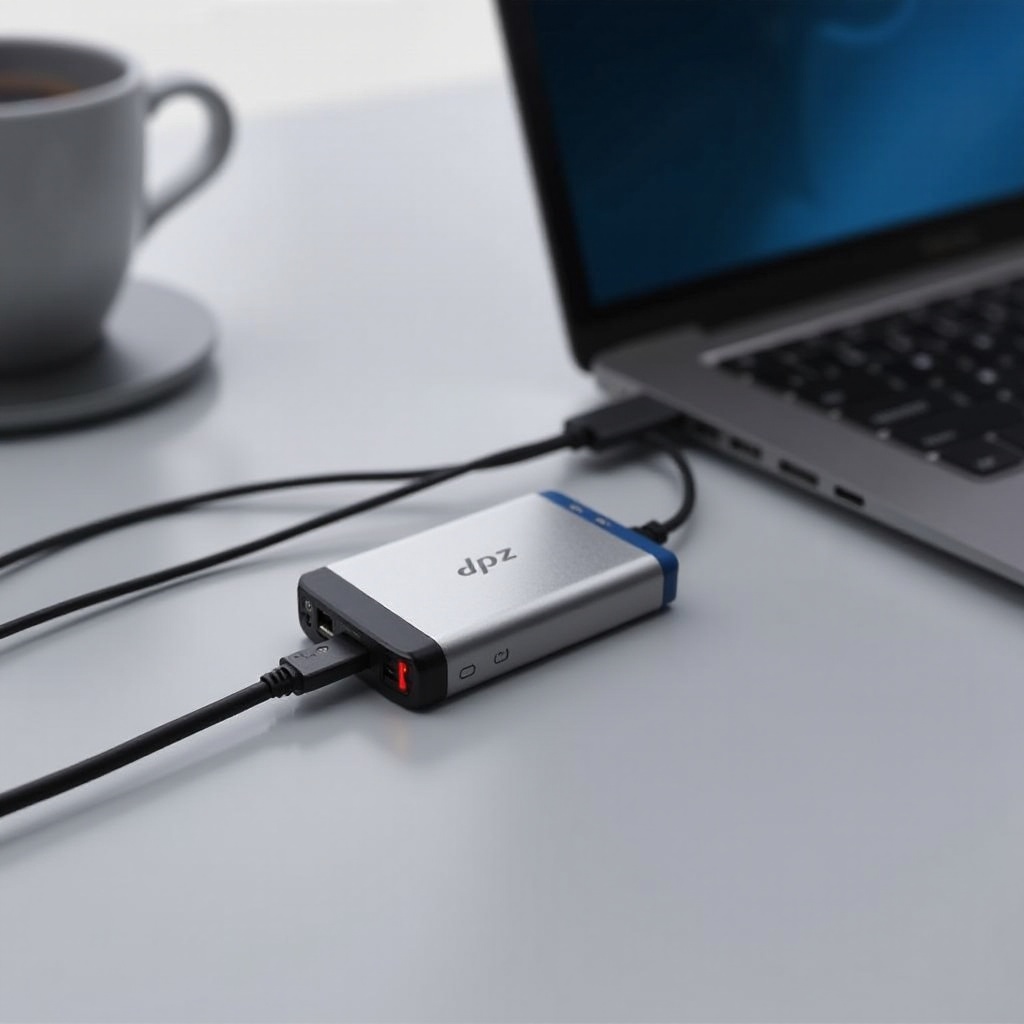
An external graphics card adapter acts as a conduit between your laptop and an external GPU, enabling your device to utilize superior graphics processing power. These adapters connect through ports like Thunderbolt 4 or USB-C, depending on your laptop’s configuration. Upon connection, the adapter collaborates with your laptop’s CPU, delivering notable graphics enhancements for smoother gameplay and quicker rendering times. Grasping the fundamental operations of these adapters is crucial for selecting one that complements your setup seamlessly.
Benefits of Using an External Graphics Card Adapter
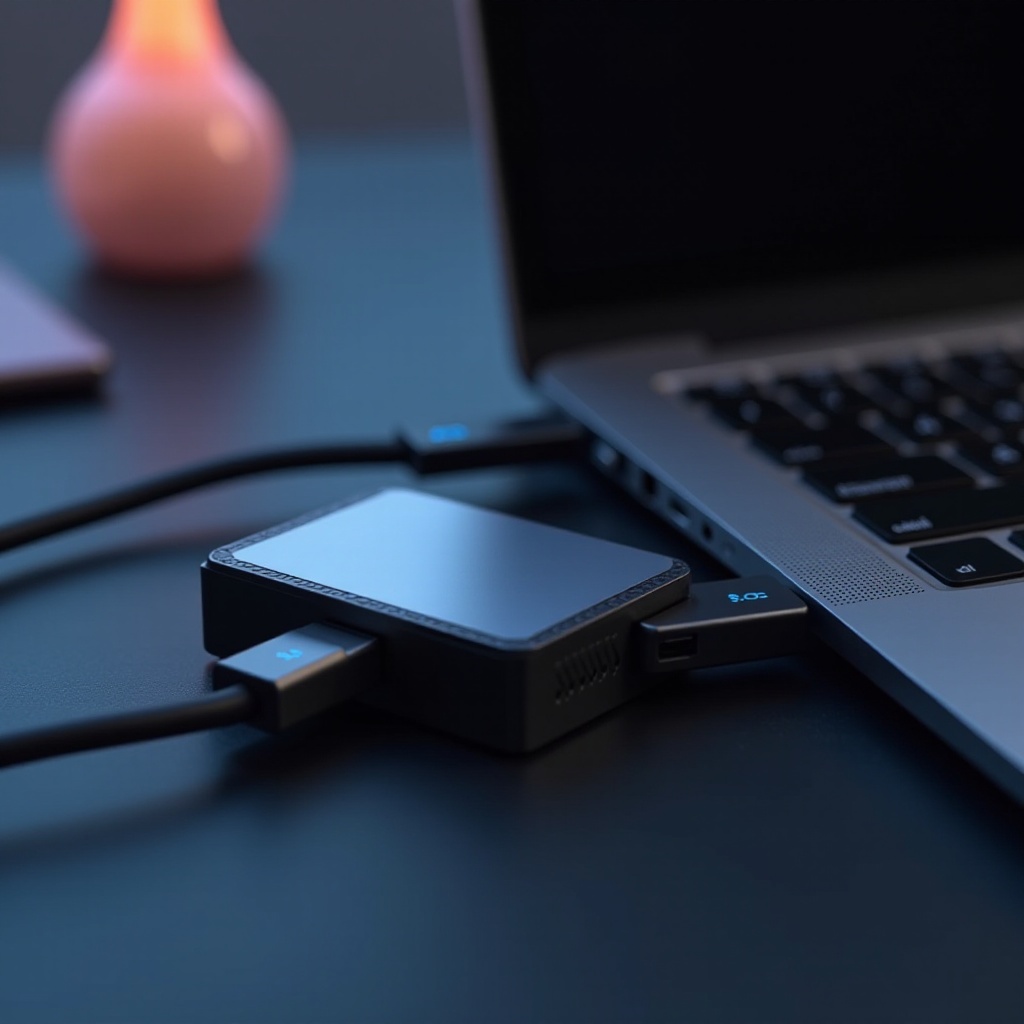
External graphics card adapters offer several compelling advantages:
-
Enhanced Graphics Capabilities: Experience desktop-level graphics on your laptop, essential for high-definition gaming and detailed 3D modeling.
-
Flexibility and Portability: Unlike stationary desktop systems, you can move your laptop and external GPU easily, transforming any environment into a robust workspace.
-
Longevity and Future-Proofing: By investing in an external graphics card adapter, you’re equipped to upgrade your GPU as needed, prolonging your laptop’s viability and adapting to technological advancements.
Transitioning from understanding benefits to choosing the right adapter requires an informed approach. Evaluating key features ensures compatibility and performance align with your expectations.
Key Features to Consider Before Buying
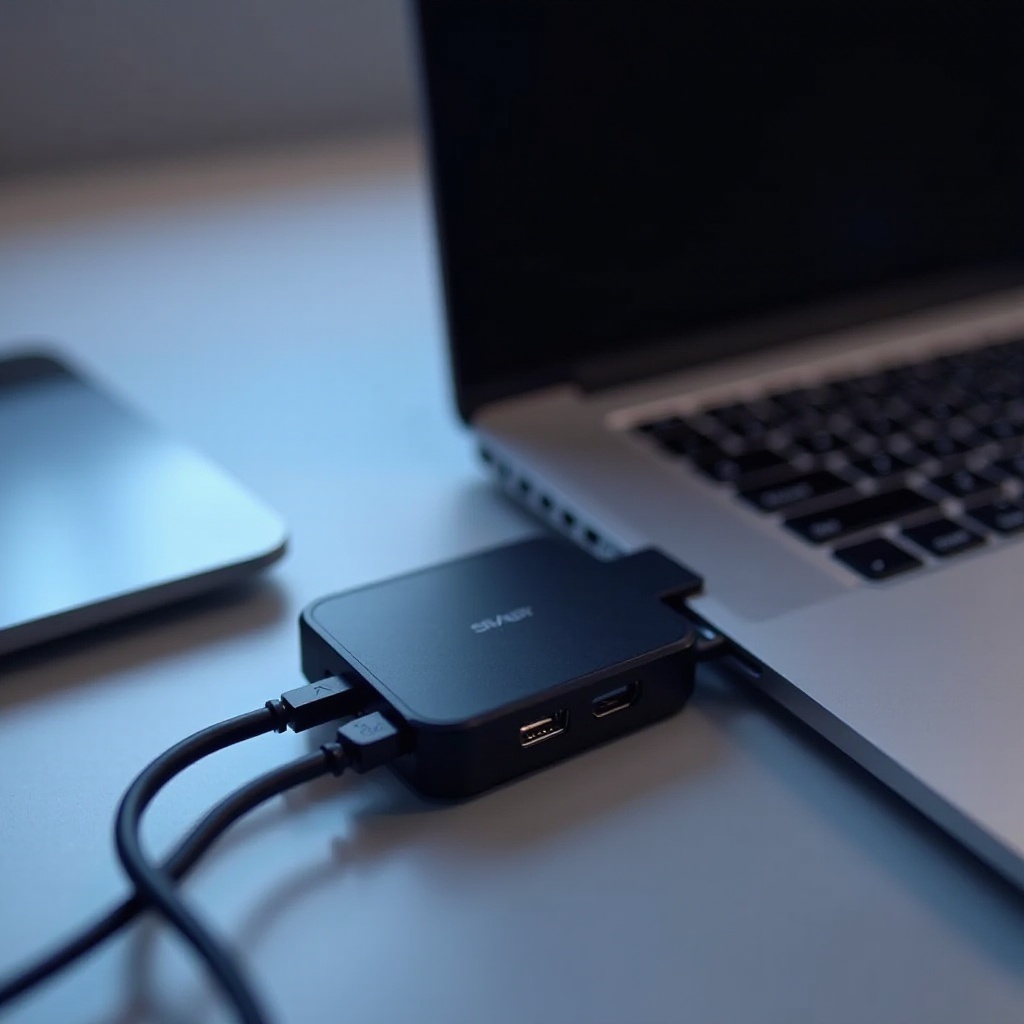
Choosing the right external graphics card adapter involves several considerations:
-
Compatibility with Laptops: Ensure the adapter supports your laptop’s operating system and provides necessary driver support. Compatibility is paramount to seamless operation.
-
Port Types and Bandwidth: The performance of your setup largely depends on selecting the right port. Thunderbolt 4 offers exceptional bandwidth essential for peak performance. If Thunderbolt isn’t available, USB-C serves as a viable alternative, albeit with reduced bandwidth.
-
Power Supply and Cooling Options: A dependable power supply and efficient cooling are critical in preventing overheating and maintaining steady performance.
Compatibility Check
Prioritize adapters with broad compatibility across various laptop brands and models. Investigate system requirements thoroughly, and don’t hesitate to contact manufacturers for clarification.
Types of Ports (Thunderbolt 4, USB-C, etc.)
Your laptop’s port type dictates the adapter choice. Thunderbolt 4 is ideal for its high data transfer rates, substantially enhancing gaming and rendering experiences. Without Thunderbolt, USB-C remains a practical option, though it may not match Thunderbolt’s performance.
Power and Cooling Requirements
Optimal external GPU performance necessitates robust power supply and efficient cooling systems. Confirm that the adapter includes quality power solutions and adequate cooling features to avoid overheating.
With the foundational knowledge and features in mind, let’s explore the leading external graphics card adapters currently available.
Top External Graphics Card Adapters in 2024
2024 is a promising year for external graphics card adapters, with several models standing out for their performance and reliability:
-
Razer Core X: Known for its versatility and great performance due to Thunderbolt 4 connectivity, it accommodates various GPUs and boasts exceptional cooling features.
-
Sonnet eGFX Breakaway Box: Offers excellent value and is a suitable choice for gamers seeking a budget-friendly option. Compatible with a wide range of AMD and NVIDIA cards while maintaining robust power supplies.
-
Mantiz Saturn Pro II: Offers an array of ports and combines elegant design with robust functionality, making it ideal for professionals needing multiple peripheral connections.
Understanding these options enhances your ability to make an informed choice, but knowing how to effectively set up your adapter is equally important.
How to Set Up an External Graphics Card Adapter
Setting up your external graphics card adapter involves straightforward steps:
-
Connect the Adapter: Attach the adapter to the appropriate port on your laptop, ensuring a secure fit.
-
Install Necessary Drivers: Download and install the drivers provided by the adapter manufacturer. Regular updates ensure optimal performance.
-
Install the GPU: Securely insert your graphics card into the adapter slot, confirming it is properly mounted.
-
Power On and Validate: Turn on the adapter’s power supply and boot your laptop. Test performance by running high-demand graphics applications to confirm enhancements.
Encounter issues? Verify connections, update all drivers, and review installation guidelines for solutions.
Conclusion
An external graphics card adapter is a valuable investment for those seeking to elevate their laptop’s graphics capabilities. With a focus on compatibility, performance, and informed setup, users can enjoy enhanced processing power, extending their device’s usefulness into the future. As technology advances, so does the potential for laptops to meet demanding tasks previously reserved for desktops.
Frequently Asked Questions
Can any laptop be connected to an external graphics card adapter?
Not all laptops support external graphics card adapters. Verify that your laptop has compatible ports, like Thunderbolt 3 or 4, and OS support.
Do external graphics card adapters drain more battery?
Yes, external GPUs can be power-intensive. It’s recommended to keep your laptop plugged in during use.
Is technical knowledge necessary to set up an external GPU?
While basic hardware knowledge helps, detailed guides and tutorials can assist beginners in setting up an external GPU easily.