Introduction
In the era of smartphones and tablets, the convenience these devices offer is unmatched. However, one of the persistent challenges remains – typing efficiently on touchscreens, especially when managing lengthy documents or emails. This is where connecting a wired keyboard to your mobile device becomes a game-changer. Whether you are an Android or iOS user, this guide is designed to help you through the straightforward steps required to enhance your productivity with a wired keyboard. You’ll learn about the necessary equipment, device compatibility, and troubleshooting techniques.
Benefits of Using a Wired Keyboard with Mobile
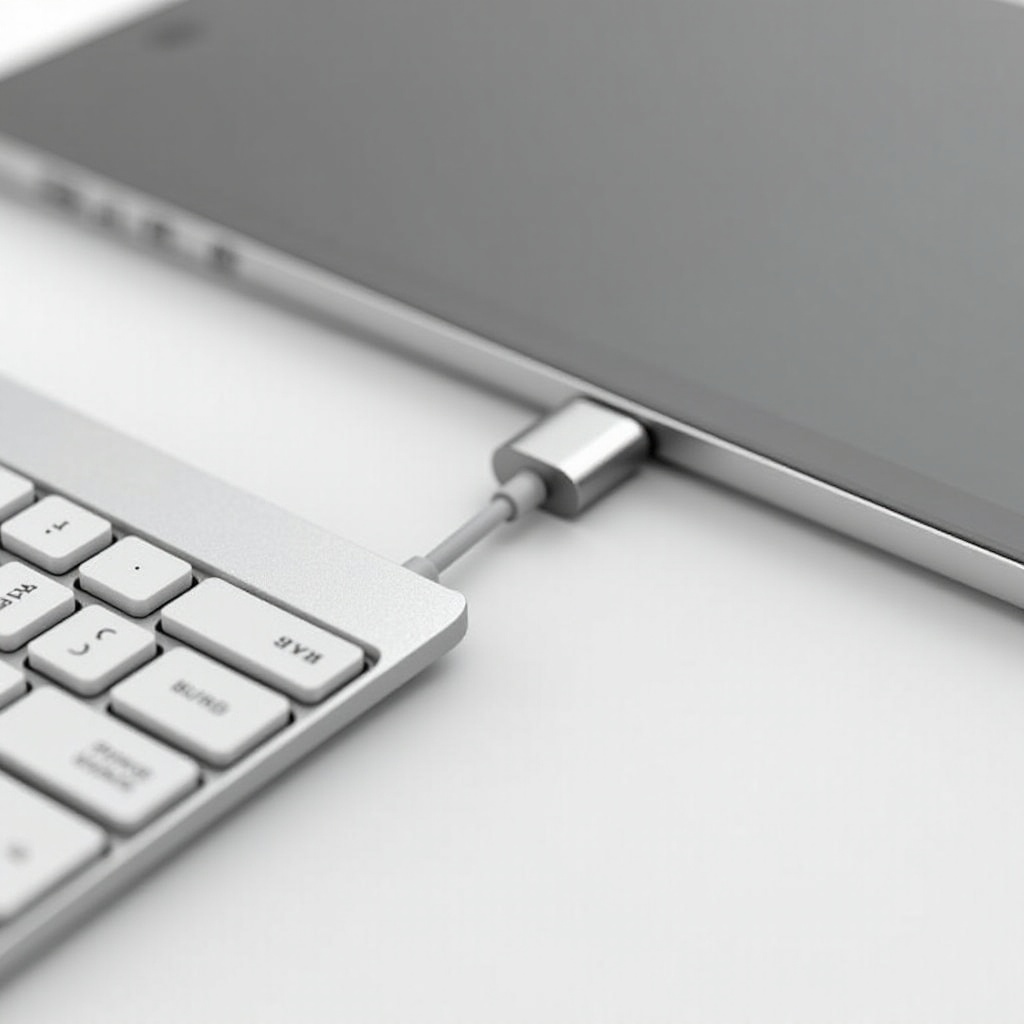
Transitioning from a touchscreen to a physical keyboard comes with notable advantages. Wired keyboards not only improve typing speed and accuracy but also offer ergonomic benefits by reducing stress on your fingers and wrists. Unlike wireless options, wired keyboards eliminate concerns about battery life or connectivity issues due to interference or signal loss. With a wired connection, you enjoy a reliable, uninterrupted typing experience that uplifts both productivity levels and user satisfaction.
Checking Device Compatibility
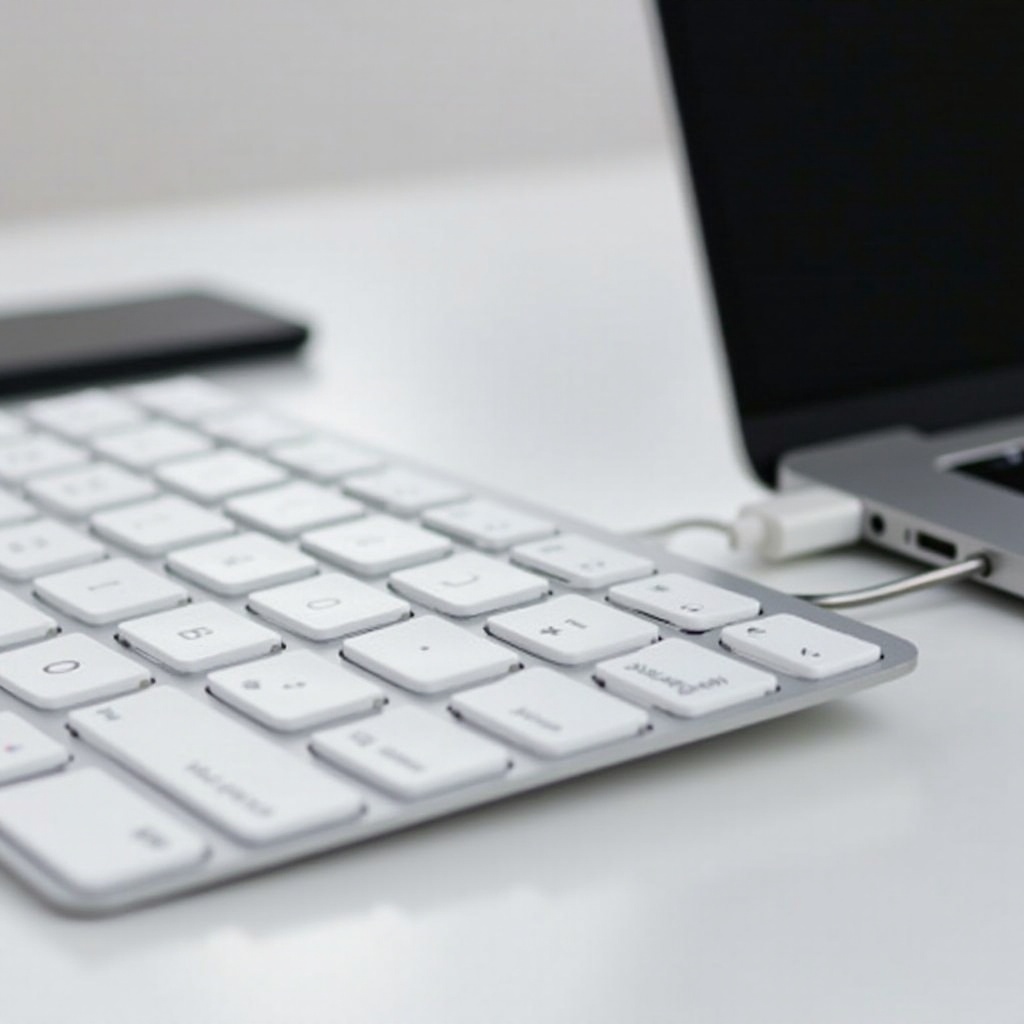
Before proceeding further, it’s crucial to confirm whether your mobile device can accommodate a wired keyboard connection. Device compatibility varies greatly between Android and iOS systems, which in turn dictates the type of adapter you’ll require.
Android Device Compatibility
The majority of Android devices support peripherals through OTG (On-The-Go) functionality. Verifying this is as simple as checking the device specifications or referencing the manufacturer’s details. While newer models generally include this capability, confirming it within the settings app ensures you can proceed without any impediments.
iOS Device Compatibility
For iOS users, the process differs slightly due to the need for specific adapters. Ensuring your iPhone or iPad runs on iOS 13 or newer is essential, as these versions facilitate peripheral connection more reliably. Checking compatibility can be verified within device settings or by consulting Apple’s documentation, ensuring you have no connectivity hitches.

Required Equipment for Connection
Now that compatibility is sorted, having the right equipment is key to setting up a successful wired keyboard connection to your mobile device.
Necessary Adapters and Cables
For Android devices, a USB OTG cable or adapter connects your keyboard’s USB plug to your mobile. iOS devices, on the other hand, will require a Lightning to USB camera adapter to establish the connection effectively.
Choosing the Right OTG Adapter
Selecting the right OTG adapter requires consideration of your device’s port type—whether a micro USB or USB-C, especially for Android devices. Double-check that your adapter is compatible with the keyboard’s USB version to ensure stable connectivity.
Connecting a Wired Keyboard to an Android Device
With your device’s compatibility verified and equipment ready, connecting your keyboard to an Android device follows these simple steps.
Step-by-Step Connection Guide
- Insert the OTG adapter into your Android device’s charging port.
- Connect the USB plug of your keyboard into the OTG adapter.
- Allow your device a moment to recognize the keyboard automatically.
- Navigate to the settings menu to adjust and customize keyboard preferences as needed.
Troubleshooting Common Issues
Should your keyboard not get recognized, try the following:
– Verify the integrity and compatibility of your OTG adapter.
– Test your keyboard with another device to rule out hardware malfunctions.
– A quick device restart can also resolve temporary glitches.
– Ensure you’re running an updated Android version.
Connecting a Wired Keyboard to an iOS Device
For iOS devices, while the steps are simple, having the right equipment makes all the difference.
Step-by-Step Connection Guide for iPhones and iPads
- Plug the Lightning to USB adapter into your device’s port.
- Connect the keyboard to the adapter using the USB plug.
- Wait for your iOS device to recognize the keyboard, usually an automatic process.
- Adjust preferences through settings to suit your typing needs.
Common Troubleshooting Tips for iOS
If you encounter issues, consider:
– Confirming that your iOS version is compatible with wired keyboards.
– Using certified Apple adapters to ensure consistent connectivity.
– Restart the device if recognition issues persist.
– When in doubt, reach out to Apple support for further assistance.
Configuring Mobile Keyboard Settings
Finetuning keyboard settings on your mobile device can make typing more intuitive and tailored to your needs.
Customizing Keyboard Settings on Android
Visit ‘Language and Input’ settings to access a range of options designed to refine your typing experience, like layout customization, auto-capitalization, and predictive text settings.
Customizing Keyboard Settings on iOS
Head to ‘General Settings’ followed by ‘Keyboard’ to modify aspects such as keyboard layout, shortcuts, and language preferences, thereby optimizing typing efficiency and comfort.
Conclusion
Integrating a wired keyboard with your mobile device opens up new possibilities for efficient and ergonomic typing. By ensuring compatibility, acquiring the correct equipment, and understanding the setup process, users on both Android and iOS can seamlessly improve their productivity levels. Maintaining awareness of settings and configurations further enhances the user experience. Enjoy the newfound efficiency in your mobile tasks with your wired keyboard setup.
Frequently Asked Questions
Can any wired keyboard be connected to a mobile device?
Not all keyboards are compatible. Ensure the keyboard’s USB type matches your device’s adapter specifications for a successful connection.
What to do if my keyboard is not recognized by my phone?
Try restarting your device, ensure adapter compatibility, and check for software updates to resolve recognition issues.
Is there a difference in connecting a high-end vs. standard keyboard?
While connection processes are similar, high-end keyboards might require specific software support or configurations to access all features.